

Accessible ways to navigate eBooks in Kortext study
At Kortext, we’re continually working to make our products accessible and inclusive to meet the needs of all students and remove barriers to learning.
In previous blogs, we’ve explored how you can personalise your experience in our eReader, including changing the font, text size, background and display options.
But accessibility isn’t just about how learning content looks. Being able to find your way around effectively matters too.
In this blog, we’ll explore the different ways you can navigate eBooks in the web version of the Kortext eReader, including dedicated accessibility features and everyday navigation tools. Some options may differ when using the Kortext apps.
File types
How you navigate an eBook in our eReader can vary depending on whether it’s supplied by the publisher as an EPUB or PDF.
EPUBs tend to offer more flexible ways to move through content, but the options available will depend on how the publisher has structured the eBook.
To check the file type, go to ‘My bookshelf’, click on the three dots below a book’s author and title details and select ‘Book information’. You’ll find it listed under ‘Format’.
Moving through content with a keyboard
You don’t need to rely on a mouse or trackpad to use Kortext study.
It can be used with a keyboard alone, whether you’re moving around the platform, finding your way through an eBook or using the built-in study tools.
Keyboard-only controls enable you to move between buttons, links and menus, turn pages, search for words or phrases and explore the table of contents. You can also select text and work with bookmarks, notes and highlights.
As you go, a visible indicator shows which item you’re currently on, so you know which button, link or other option is selected. These elements also follow a logical order, helping you keep track of where you are as you move through an eBook.
Finding your way around a book
Sometimes you know exactly where in a book you want to go.
The table of contents provides a quick way to move between chapters and sections without having to work through everything that comes before them. You can open it by selecting the contents icon from the eReader sidebar or using a keyboard shortcut.
You can also navigate using page or location numbers at the bottom of the screen.
Where available, headings provide another way to find your way around an eBook, particularly when using assistive technology such as a screen reader.
Skip links can also help you bypass repeated elements, such as menus, and get to the main content more quickly.
Finding words and phrases
You don’t always know which page or chapter contains the information you need.
From your bookshelf, you can search across Kortext study to find content by title, author, publisher, ISBN or keyword. The search bar is at the top of your screen.
Once you’re in an eBook, you can narrow your search further.
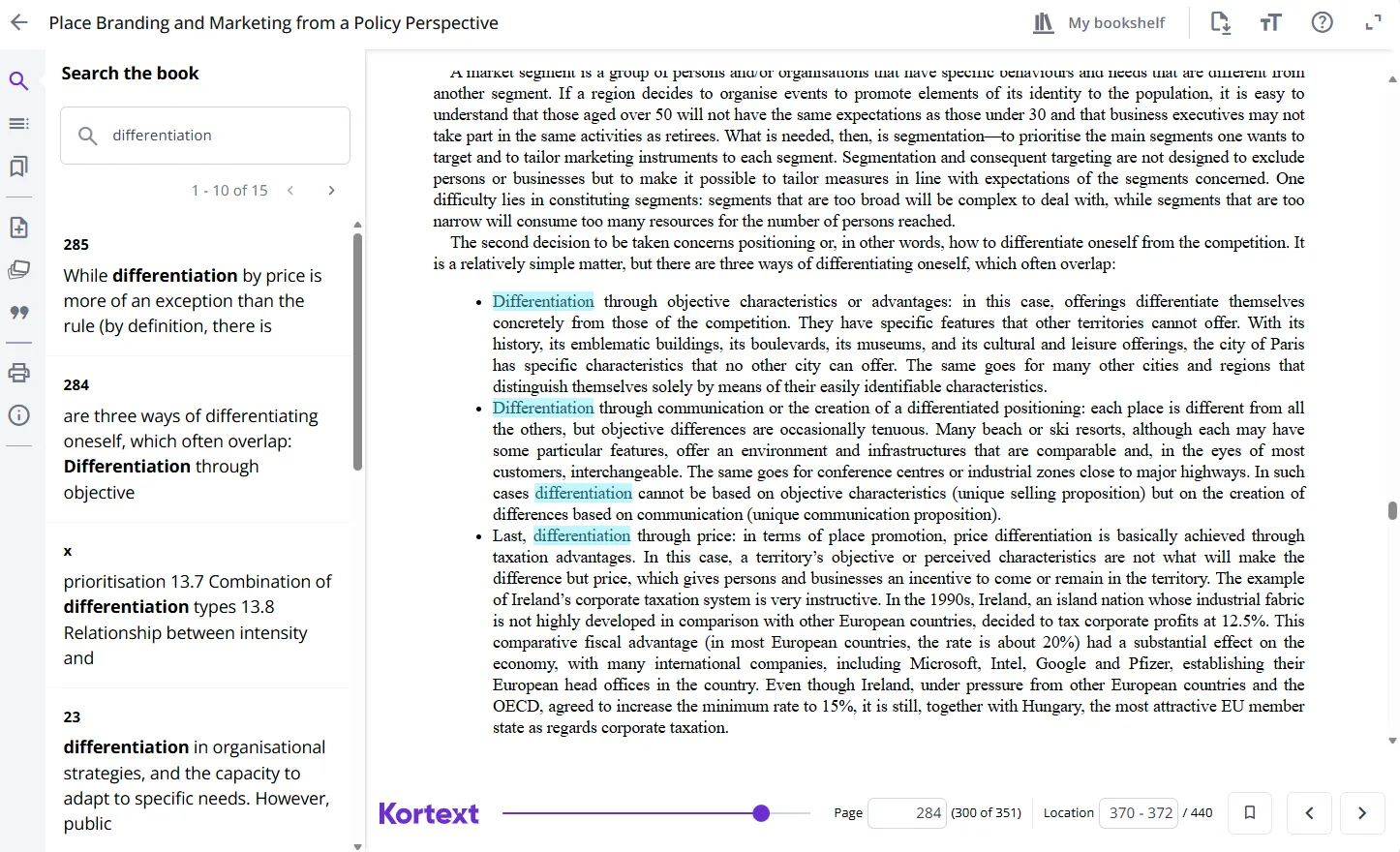
The search tool in the Kortext eReader lets you search within an eBook for a particular word or phrase and go directly to relevant content. You can access it by selecting the magnifying glass icon in the eReader sidebar or using a keyboard shortcut.
This provides a way to find and navigate texts, helping you locate relevant information without manually working through a book.
Returning to important content
Navigation isn’t just about finding new content. You might also want to revisit a page or passage you’ve already found.
While bookmarks, notes and highlights are primarily study tools, they can also help you return to useful content quickly.
In our eReader, you can save a page by creating a bookmark. To add a highlight or note, select a passage and choose from the options that appear. Pick a colour to highlight the text or select ‘Add note’ to create a note. You can find your saved pages, notes and highlights by selecting icons in the eReader sidebar or using keyboard shortcuts.
Our commitment to accessible navigation
The Kortext eReader (web and desktop versions) is conformant with WCAG 2.2 Level AA, independently verified through a third-party accessibility audit.
We continue to monitor and review the accessibility of the Kortext eReader as part of our ongoing commitment to removing barriers to learning.
Accessibility support
If you experience any issues or have any queries about accessibility, please email us at accessibility@kortext.com or call us on 01202 551203 for assistance.
You can explore the full range of accessibility features in Kortext study, including a list of keyboard shortcuts, in our accessibility guide.