
Accessible ways to read and listen in Kortext study
Learners have their own needs and preferences when engaging with digital content, which is why having a range of ways to access it matters.
In a previous blog, we explored different ways you can navigate eBooks in Kortext study.
This time, we’re looking at text-to-speech, screen-reader compatibility and offline reading, and how these features can support learning.
Listen with Read aloud
For some learners, listening may be essential. For others, it simply offers more choice in how they engage with written content.
Read aloud is our built-in text-to-speech feature that converts written content into speech.
It’s available where an eBook supports text-to-speech, which can depend on how the file has been created by the publisher.
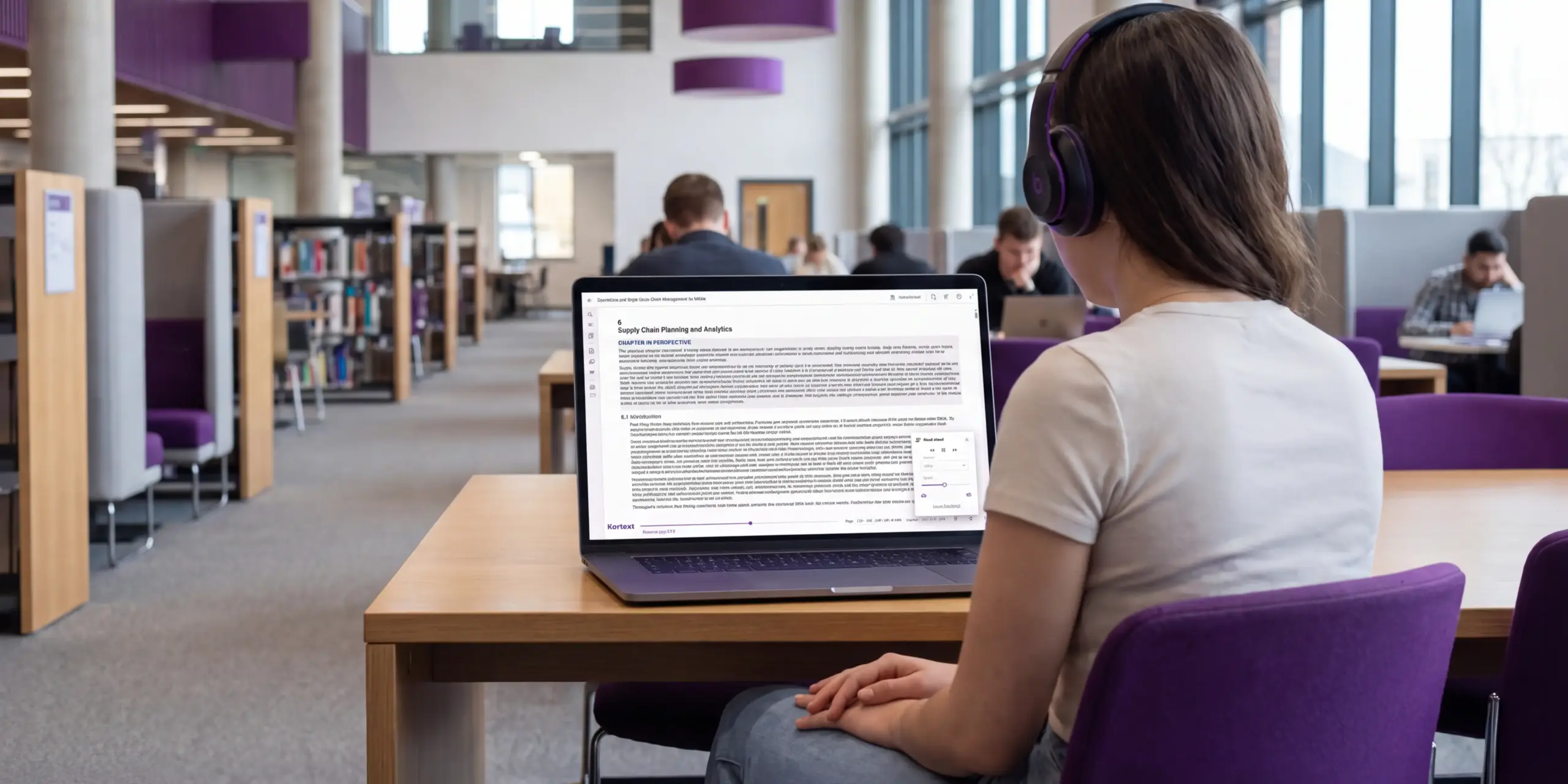
When using the eReader in a browser, select some text and choose ‘Read aloud’ from the menu. The controls then let you pause the narration and move backwards or forwards.
If you’re using an app, you can listen to a whole page or a selected passage. Tap the three dots in the top right and choose ‘Read aloud’ to hear the whole page or drag your finger across the text to select a passage and tap the Read aloud icon in the pop-up menu.
Choose how you listen
You can personalise Read aloud by changing the narrator and adjusting the reading speed.
When using a browser, you can choose from voices with English and American accents. The eReader selects an accent based on your language settings, but you can choose another voice if you prefer. You can also use a sliding scale to adjust the reading speed.
If you’re using an app, the narrator and reading-speed options will depend on your device and operating system.
Using a screen reader
Read aloud and screen readers both convert digital text into speech, but they serve different purposes.
While Read aloud focuses on the text of an eBook, a screen reader can help you navigate both the eBook and the platform where you access it.
A screen reader can read the text of an eBook and image descriptions where alt text is provided. It can also help you navigate using elements such as headings, identify controls across the eReader, and use study tools such as bookmarks, notes and highlights.
Whether you’re using a browser or one of our apps, Kortext study is compatible with widely used screen readers, including JAWS, NVDA, VoiceOver and TalkBack.
Reading offline
A reliable internet connection isn’t always available, and connectivity issues can make it harder to access learning materials when you need them.
Offline reading helps reduce this potential barrier by allowing you to continue studying without an internet connection, giving you more flexibility over when and where you learn.
When you’re online, you can download eBooks to the Kortext mobile or desktop app for offline reading. You can use Read aloud and study tools like notes and highlights while offline, and your activity will sync across your devices when you reconnect.
When you open a book in the app for the first time, you’ll be asked if you’d like to download it and shown the file size. Depending on the licence, you may first need to select ‘Borrow’ or ‘Borrow again’. Select ‘Yes’ to download the book to your device.
You can also download books directly from your bookshelf. A downward arrow shows that a book hasn’t yet been downloaded. Select the arrow or open the three-dot menu on the book thumbnail and select ‘Download’.
Once the download is complete, the arrow will change to a tick, showing that the book is available to read offline.
Our commitment to accessibility
The Kortext eReader (when accessed in a browser) is conformant with WCAG 2.2 Level AA, independently verified through a third-party accessibility audit.
We continually monitor and review the accessibility of the Kortext eReader to help remove barriers to learning.
Accessibility support
If you experience any issues or have any questions about accessibility, please email us at accessibility@kortext.com or call us on 01202 551203 for assistance.
You can learn more about the accessibility features available in Kortext study by downloading our accessibility guide or visiting our dedicated accessibility page.